
Making sure that your clients get regular notifications and their reviews is very important. Yet, most of the time the review is initiated by manually sending a message, and there is still room for work to slip through.
Here, a workflow based on status update can solve the problem. Take a look at the video on how you can create such a workflow in 5day.io within two minutes.
What the workflow does
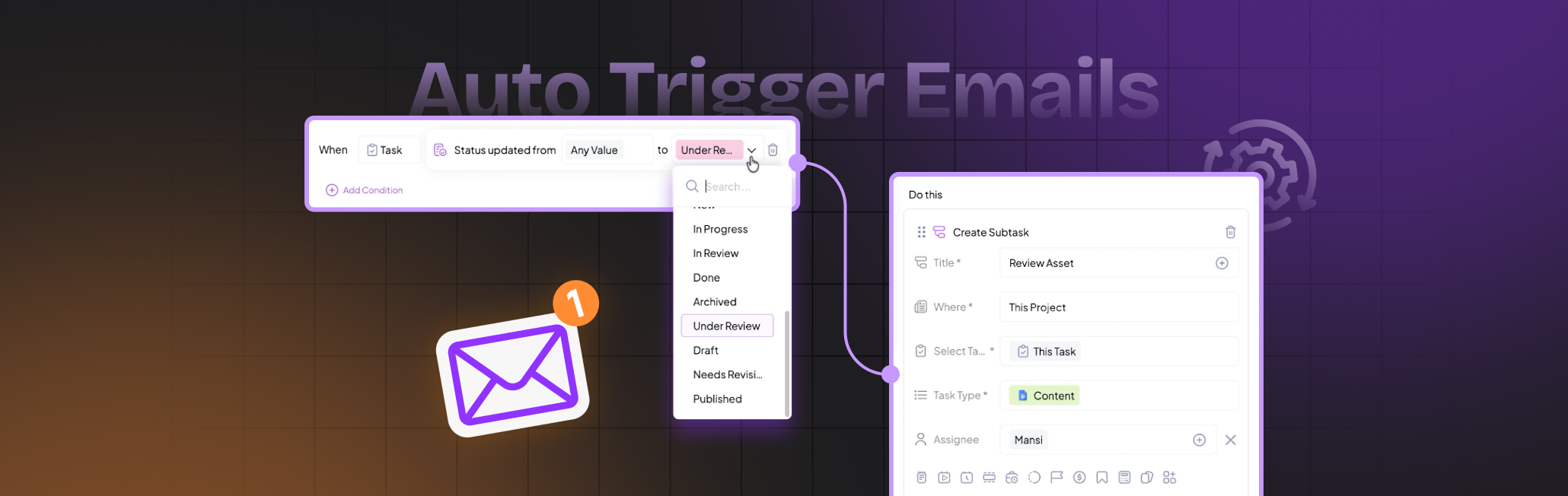
Once a task changes its status to Under Review, 5day.io will:
- Automatically create a subtask called Review Asset in the same project.
- Make this subtask owned by the client.
- Send the following email to the client: “[Task name] is ready for your review. Please review it by [due date].”
How to create the workflow
- Go to Settings of the project by clicking the three dots icon.
- Switch to the Workflows
- Create a workflow based on the trigger: task status
- Add an action to create a subtask titled Review Asset. The task type is Content, and the client will be the assignee.
- Add an email action directed to the client. Populate the subject with the task name and due date.
Try it out before going live
Change the status of a task to Under Review. You’ll see a new subtask called Review Asset under the task, assigned to the client, and receive the email with the task name and due date populated.
How this approach helps agencies
- Prompt feedback: the request is automatically sent as soon as the work is done, not when someone thinks about it.
- Accountability: the review is a subtask with an owner and deadline, not just a message lost among other emails.
- Client relationship management: your clients will always receive timely and consistent notifications about the milestones in your project without putting any extra effort into it from your side.
- Efficiency: you don’t have to retype the email every time or forget about some actions to perform.
Next Steps
The example above is based on only one trigger and one action, but there can be more steps in the workflow. Approvals, handoffs, and any other changes of status follow the same principle.
Ready to set this up for your own projects?