

15 Automation Examples in 5day.io
At a Glance: All 15 Automations in 5day.io.io
|
Sr. No. |
Workflow type |
Automation |
Trigger |
Action |
|
|
Task tracking |
Send a reminder before a task is due |
Due Date |
Email sent to assignee |
|
2. |
Task tracking |
Escalate a task that’s gone overdue |
Due Date |
Priority raised, manager notified |
|
3. |
Task Tracking |
Reassign a content task for review |
Task Status |
Email sent to reviewer with custom copy |
|
4. |
Content and Marketing |
Break a published blog into distribution tasks |
Task Status + Tag |
Subtasks created for distribution |
|
5. |
Content and Marketing |
Hand a finished draft to the editor |
Task Status |
Assignee changed to editor, status moves to editing |
|
6. |
Content and Marketing |
Build out a campaign launch checklist |
Task Status |
Subtasks created for each channel |
|
7. |
Client and stakeholder |
Keep the client posted when work starts |
Task Status |
Email sent to client with update |
|
8. |
Client and stakeholder |
Send a client an approval request |
Task Status |
Email sent to client with task link |
|
9. |
Client and stakeholder |
Auto-build a client onboarding checklist |
Project Created + Tag |
Checklist of onboarding tasks generated |
|
10. |
Project setup |
Rebuild a recurring task automatically |
Task Status + Tag |
New cycle’s task created from template |
|
11. |
Integration |
Turn HubSpot data into assigned tasks |
Create Task + Assignee |
Create task and add assignee |
|
12. |
Multi-Condition Workflows |
Gate a video for publish |
Task Status + Task Type |
Status updated, assignee added for publishing, email sent to marketing lead |
|
13. |
Multi-Condition Workflows |
Route client-facing content to a senior editor |
Task Status + Task Type |
Assignee changed to senior editor, email sent to client with preview link |
|
14. |
Multi-Condition Workflows |
Auto-route urgent design tasks |
Task Created + Tag + Priority |
Assignee added, priority raised |
|
15. |
Multi-Condition Workflows |
Auto-schedule content once it’s approved |
Section + Task Type |
Subtask created for scheduling, assignee added |
How to Set Up These Automations in 5day.io
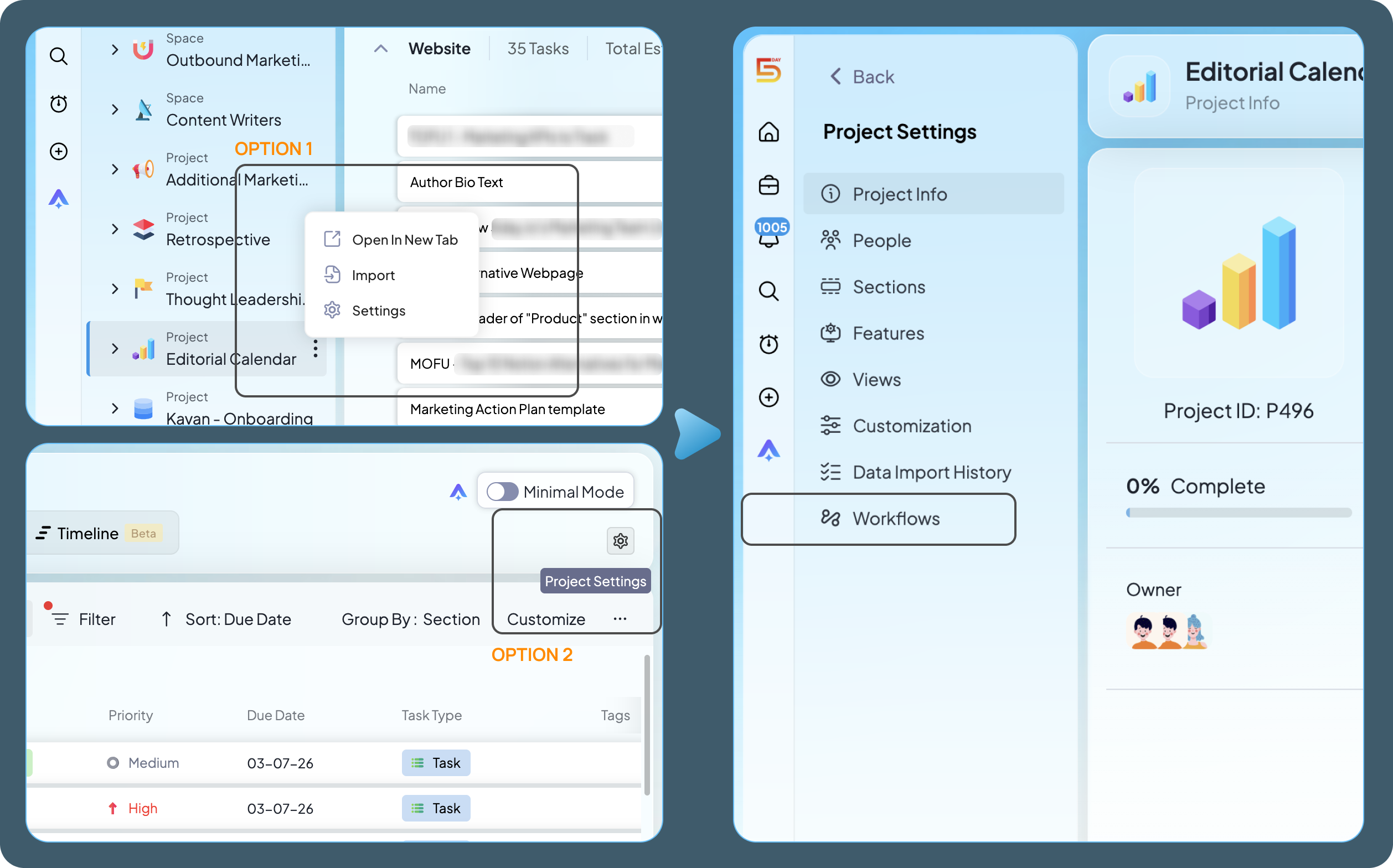
Before you build any automation below, you’ll need to get into Project Settings. There are two ways to do this:
- Click the settings icon in the top right corner of your project view and go to Workflows
- Or right-click the three dots next to the project name in the navigation panel and select Settings from the menu, then go to Workflows
Once you’re in, every automation below follows the same starting point, so we won’t repeat these steps for each one.
-
Send a reminder before a task is due
Teams that manage deadlines, whether it’s client work or internal reviews, need a heads-up before something is due, not just on the day it’s due. I used to lose track of tasks that weren’t due today but were due soon enough to need prep. A deadline three days out doesn’t feel urgent so this is one of the simplest examples of automation in project management I use daily, a reminder that emails me before the due date hits, at a time I choose, so nothing quietly creeps up on me anymore.
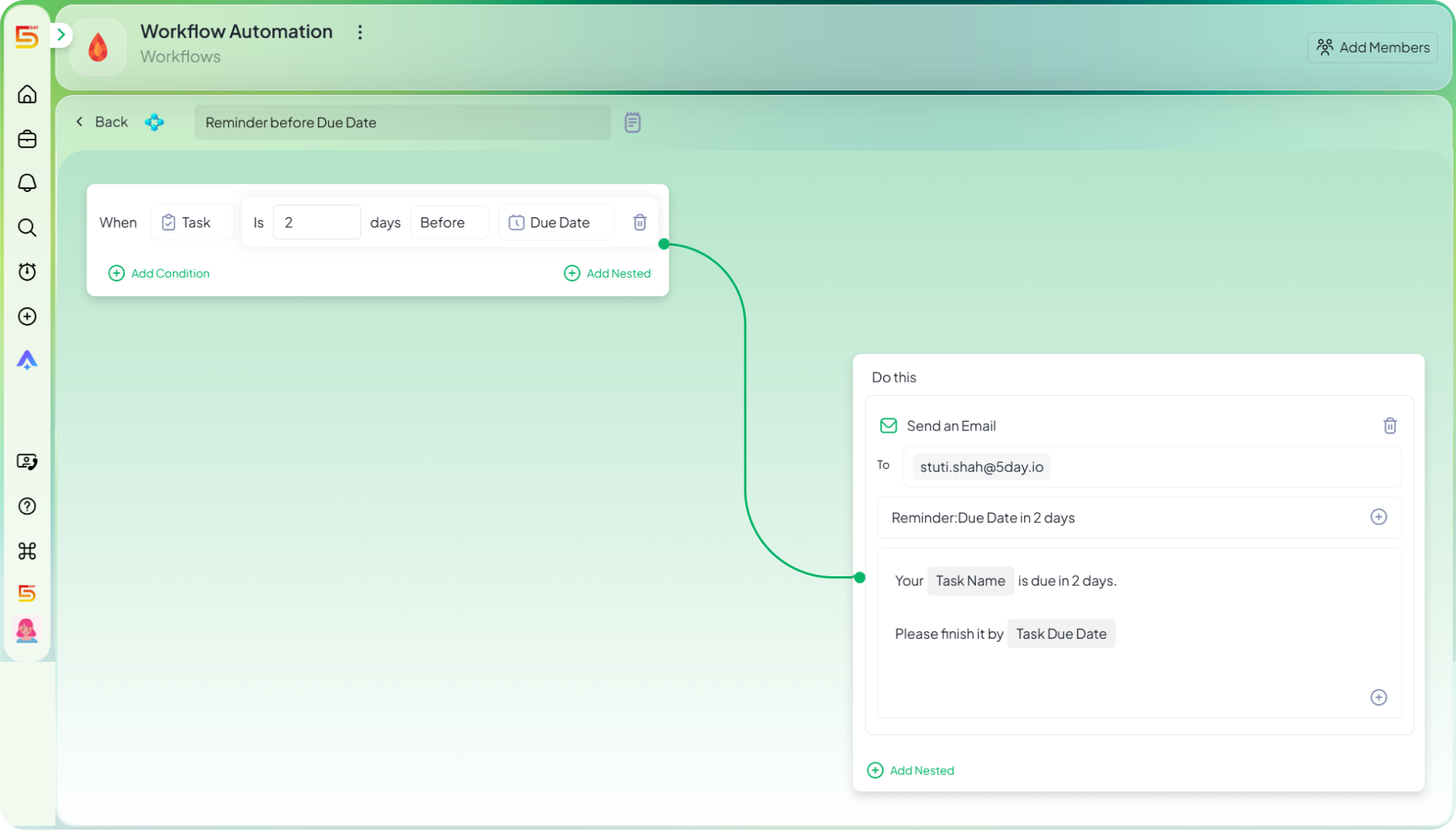
Setup
- Once in Workflows, select Due Date as your Trigger
- Set your custom date → for example, 2 days before due date
- Move to the Actions tab and select Email
- Write a short reminder message and confirm the assignee is set as the recipient
- Save the automation and test it on one task before rolling it out project-wide
-
Escalate a task that’s gone overdue
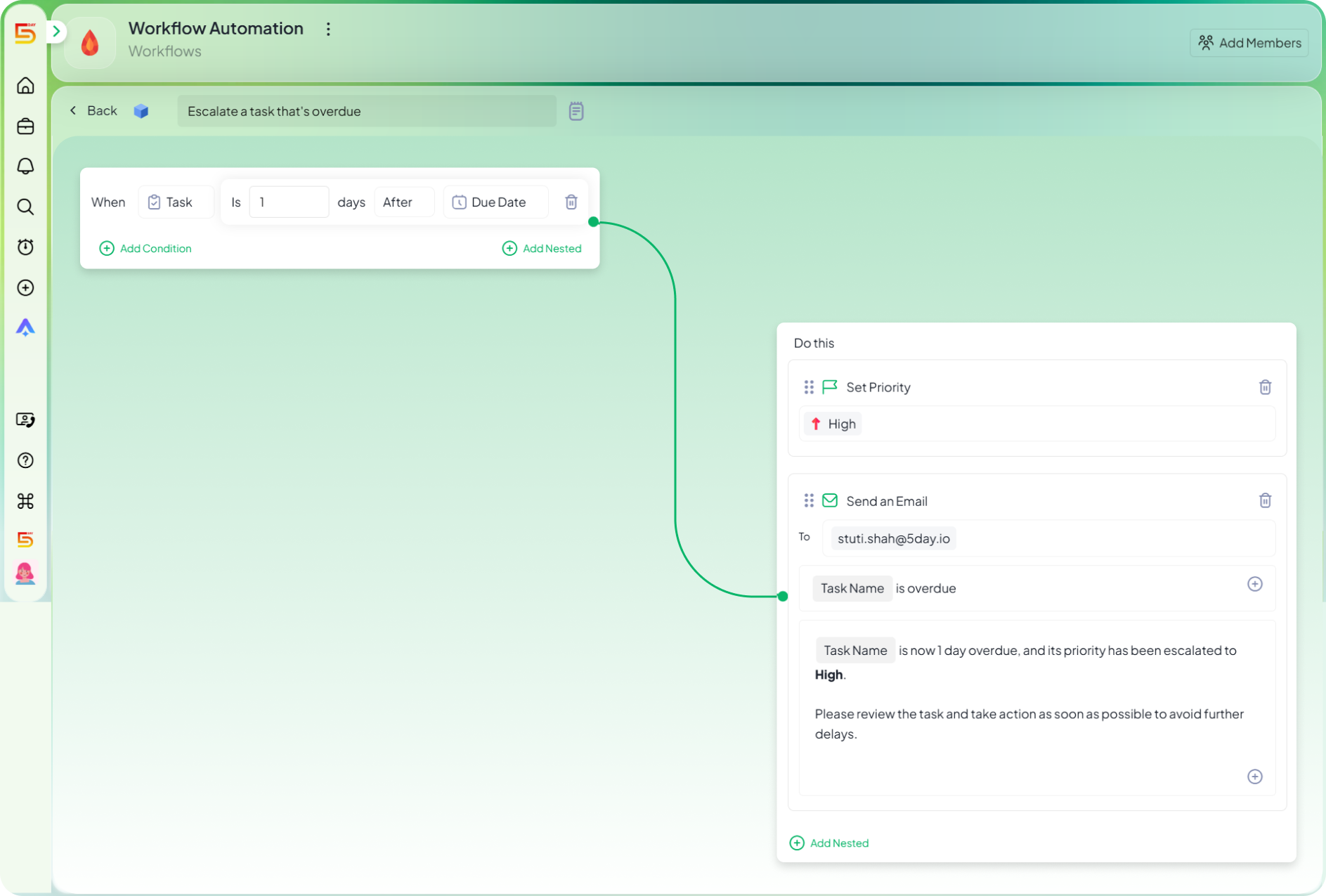
Marketing teams juggle a lot of moving deadlines, campaign assets, approvals, client sign-offs, and it’s easy for one overdue task to slip past everyone until it’s actually blocking a launch. You can set this project management automation idea so the moment a task passes its due date and is still open, it gets flagged automatically instead of you having to manually scan every project for what’s slipping.
Setup
- Once in Workflows, select Due Date as your Trigger
- Set the condition to After Due Date, so it fires once the date has passed
- Move to the Actions tab and select Priority → set it to High
- Add an Email action to notify the manager that the task is overdue
- Save the automation → test it on one task before rolling it out project-wide
-
Reassign a content task for review
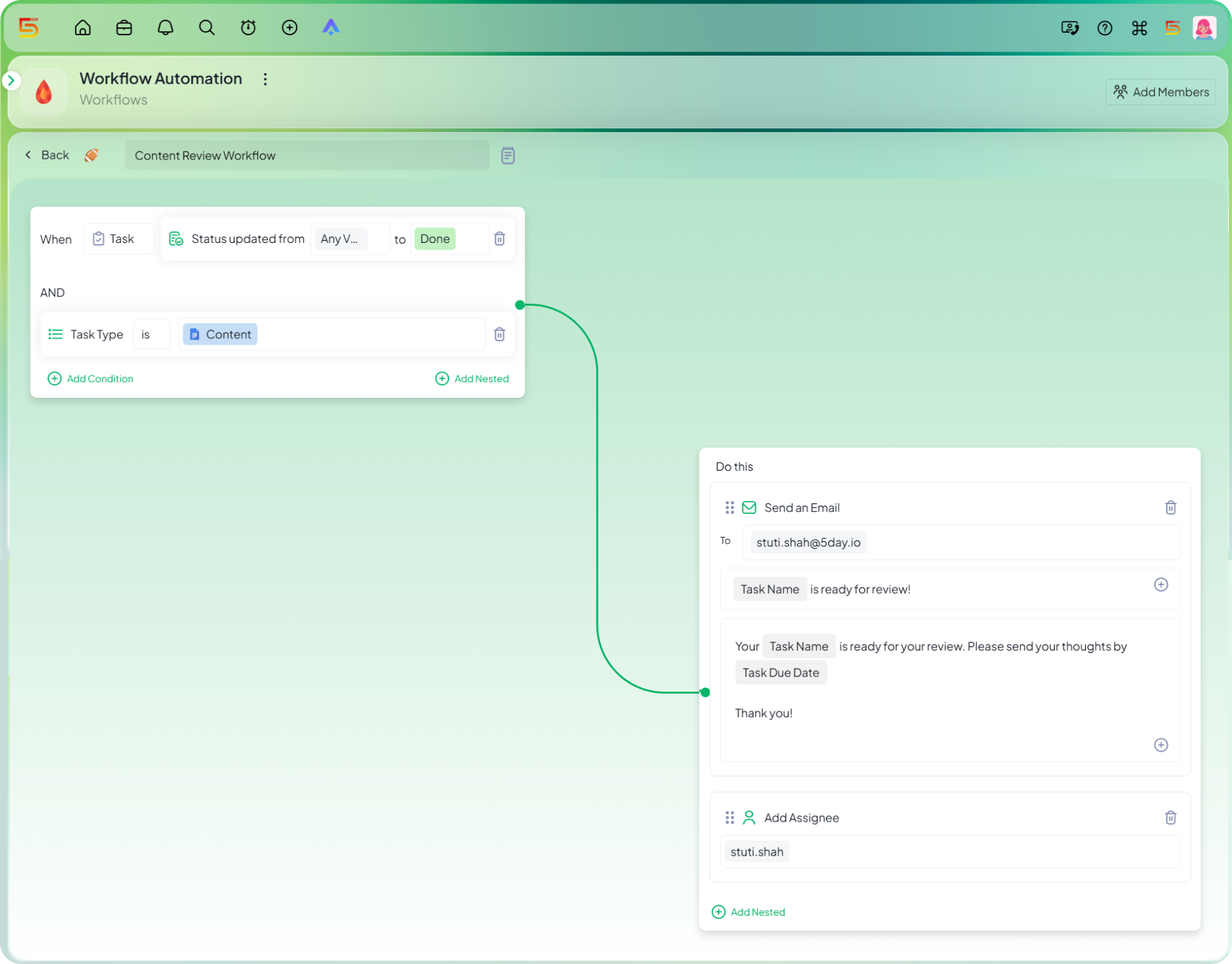
Content pieces move through a lot of hands before they’re ready to publish, writer to reviewer, sometimes reviewer back to writer, and it’s easy for a task to sit in “Under Review” without the right person actually knowing it landed on their plate. I use this marketing automation workflow so the moment a content task hits review status, the reviewer gets a direct email instead of finding out only when they happen to check the project.
Setup
- Once in Workflows, select Task Status as your Trigger and set the condition to Under Review
- Add a nested condition for Task Type and set it to Content
- Move to the Actions tab and select Email
- Write your custom copy for the reviewer
- Add a nested condition for Assignee
- Save the automation → test it on one task before rolling it out project-wide
-
Break a published blog into distribution tasks
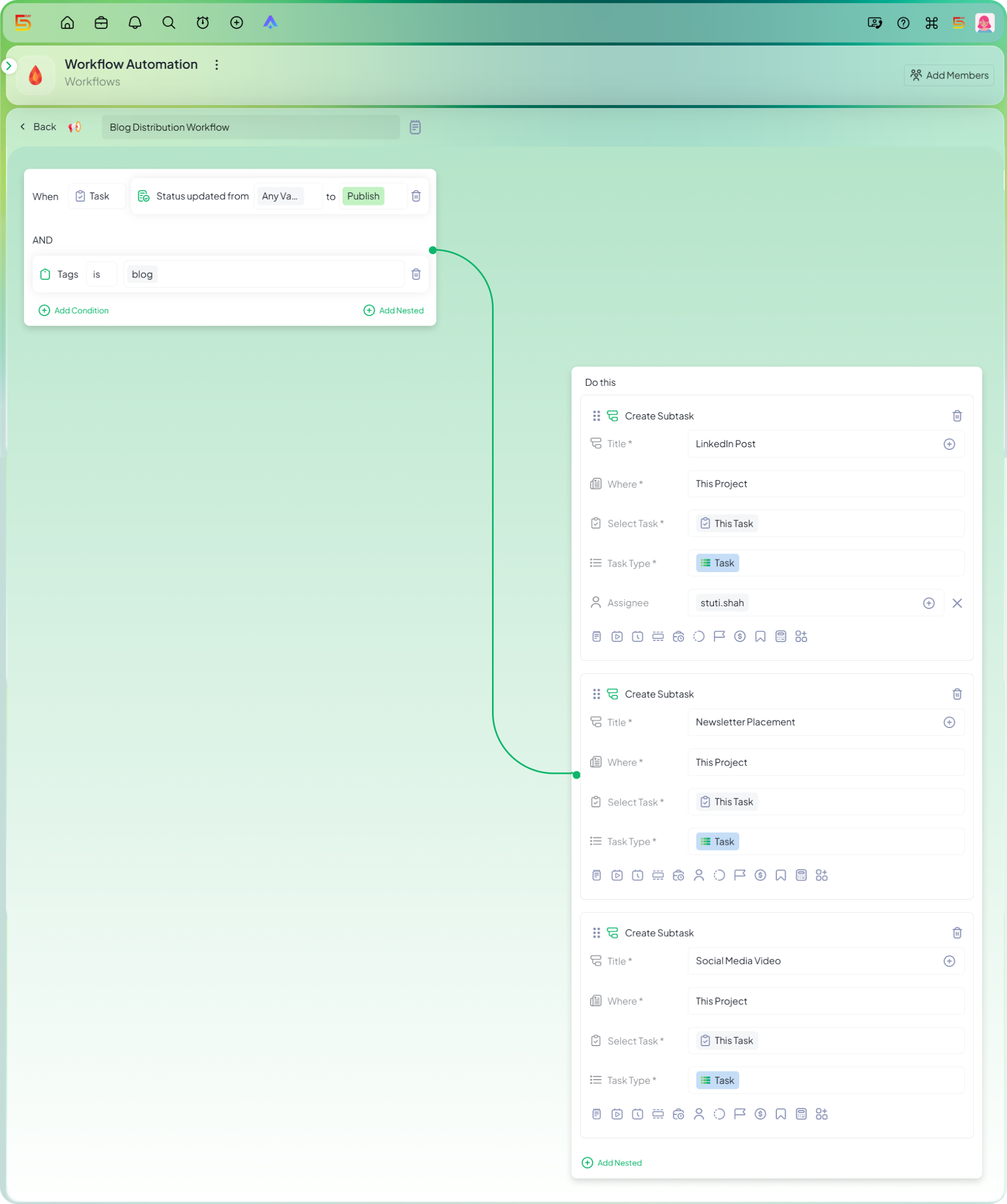
Once a blog is published, it kicks off distribution tasks like a LinkedIn post, a newsletter mention, maybe a repurposed clip for social. I used to write these follow-up tasks manually every single time a post went live, which meant they sometimes got skipped when things got busy. This is a good answer to how to automate repetitive marketing tasks, since the moment a blog post is marked published, 5day.io builds out the entire distribution checklist for me.
Setup
- Once in Workflows, select Task Status as your Trigger and set the condition to Publish
- Add a nested condition for Tag and set it to Blog
- Move to the Actions tab and select Create Subtask
- Add each distribution subtask you want generated, for example, LinkedIn post, Newsletter mention, and Social clip, add other details basis requirement
- Save the automation → test it on one blog task before rolling it out project-wide
-
Build out a campaign launch checklist
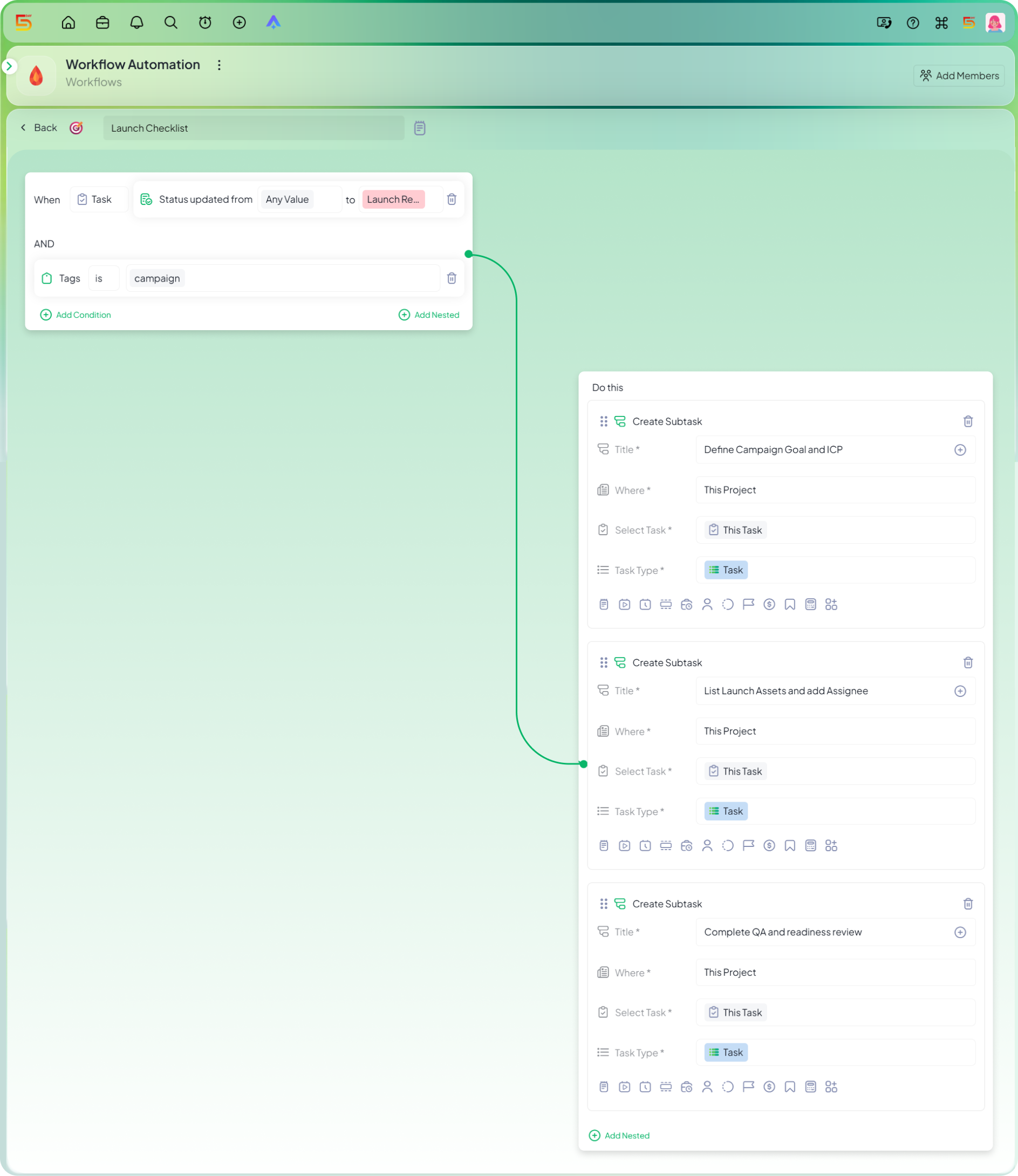
Launching a campaign involves a handful of channels that all need their own piece, email, social, ads, maybe a landing page update, and building that checklist from scratch every single time wastes time you don’t have right before a launch. I used to keep a mental list of the usual items and hope I didn’t forget one. Now, this is one of my go-to workflow automation ideas for marketing teams, the moment a task is tagged launch ready, 5day.io builds out the full checklist across every channel automatically.
Setup
- Once in Workflows, select Task Status as your Trigger and set the condition to Launch Ready
- Move to the Actions tab and select Create Subtask
- Add a subtask for each channel you want covered, for example, defining campaign targets, listing asset requirement etc
- Save the automation → test it on one campaign task before rolling it out project-wide
Hand a finished draft to an editor
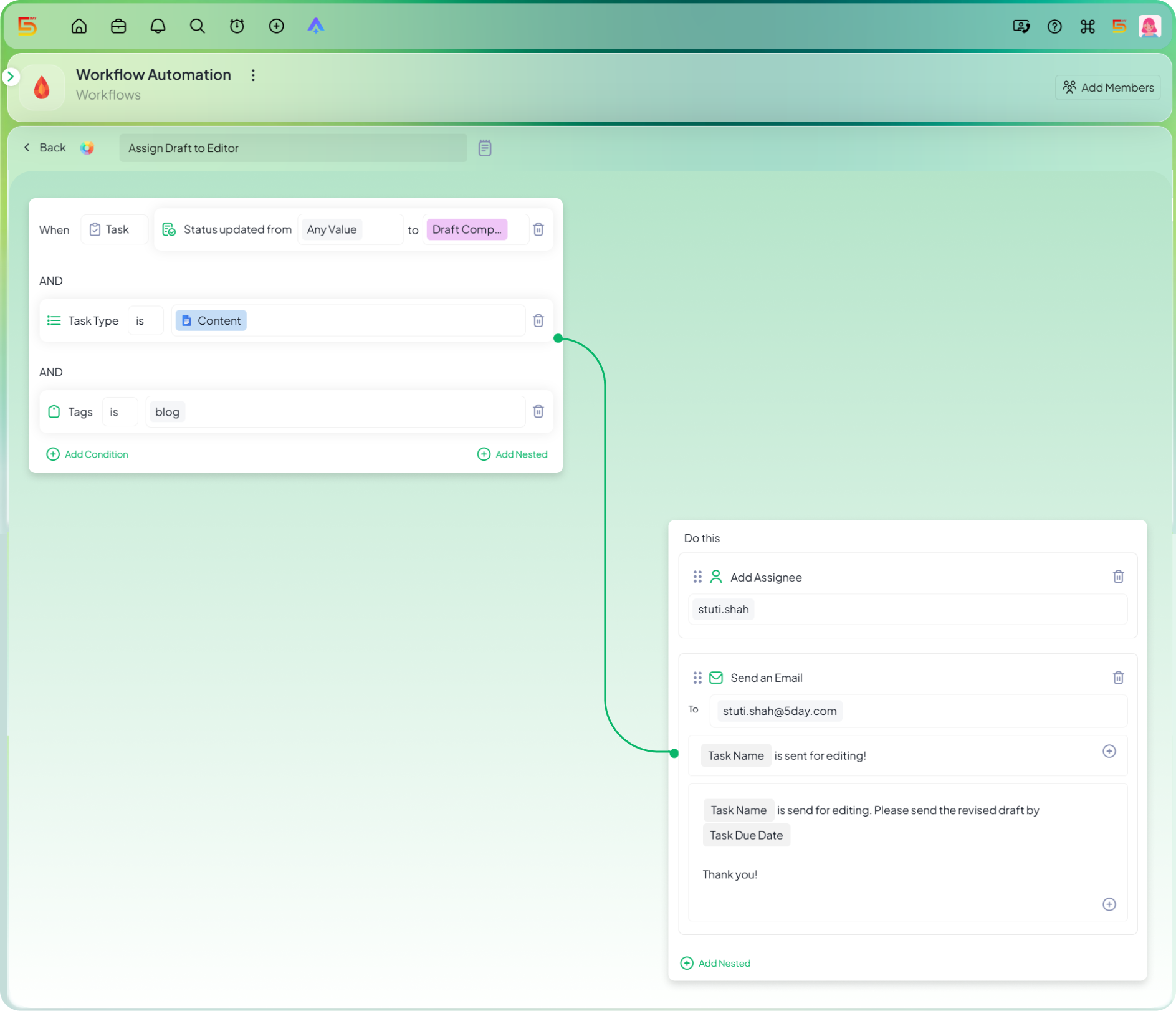
Once the writer is done and the piece needs to move to someone else’s plate, that handoff often depends on someone remembering to reassign it manually. I used to ping editors directly every time a draft was ready, which worked fine until I forgot, or was out for the day. This is one marketing workflow automation that marks the draft complete and reassigns itself to the editor and moves into editing without anyone needing to chase it.
Setup
- Once in Workflows, select Task Status as your Trigger and set the condition to Draft Completed
- Add a nested condition for Task Type as Content and another for Tag as Blog
- Move to the Action tab and select Assignee → set it to your editor
- Add a Status action alongside it → set it to Editing
- Save the automation → test it on one task before rolling it out project-wide
Keep the client posted when work starts
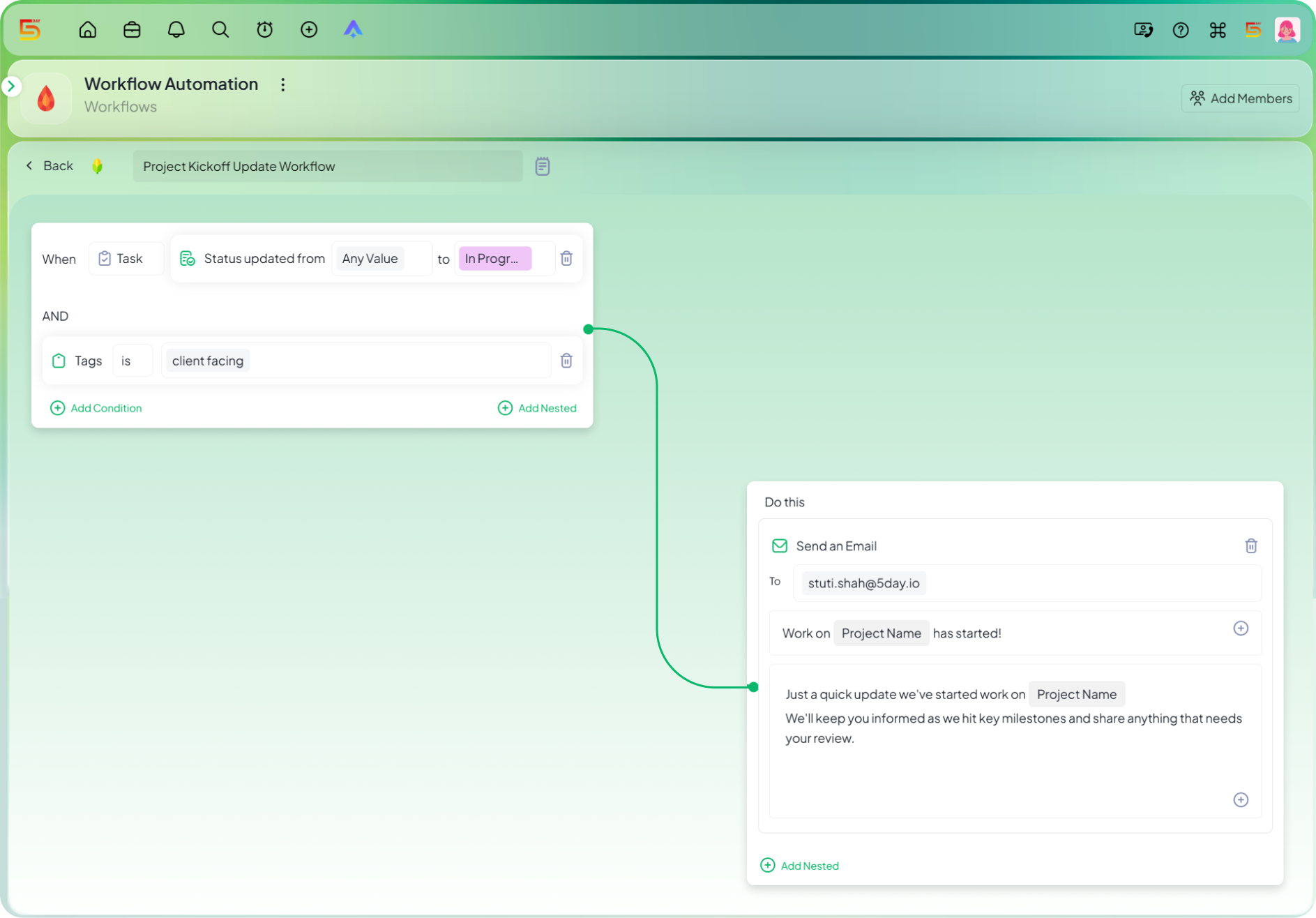
Clients don’t need updates on every little status change, but they do want to know the moment work has actually started on something they’re paying for. I used to send these updates manually, which meant they sometimes went out late, or not at all when things got busy. This is an example of automated marketing workflow in action, the moment a task moves to in progress, the client gets an email without me having to remember to send it.
Setup
- Once in Workflows, select Task Status as your Trigger and set the condition to In Progress
- Add a nested condition for Tag as Client Facing
- Move to the Actions tab and select Email
- Write your client-facing update copy, keep it short and reassuring
- Save the automation → test it on one task before rolling it out project-wide
Send a client an approval request
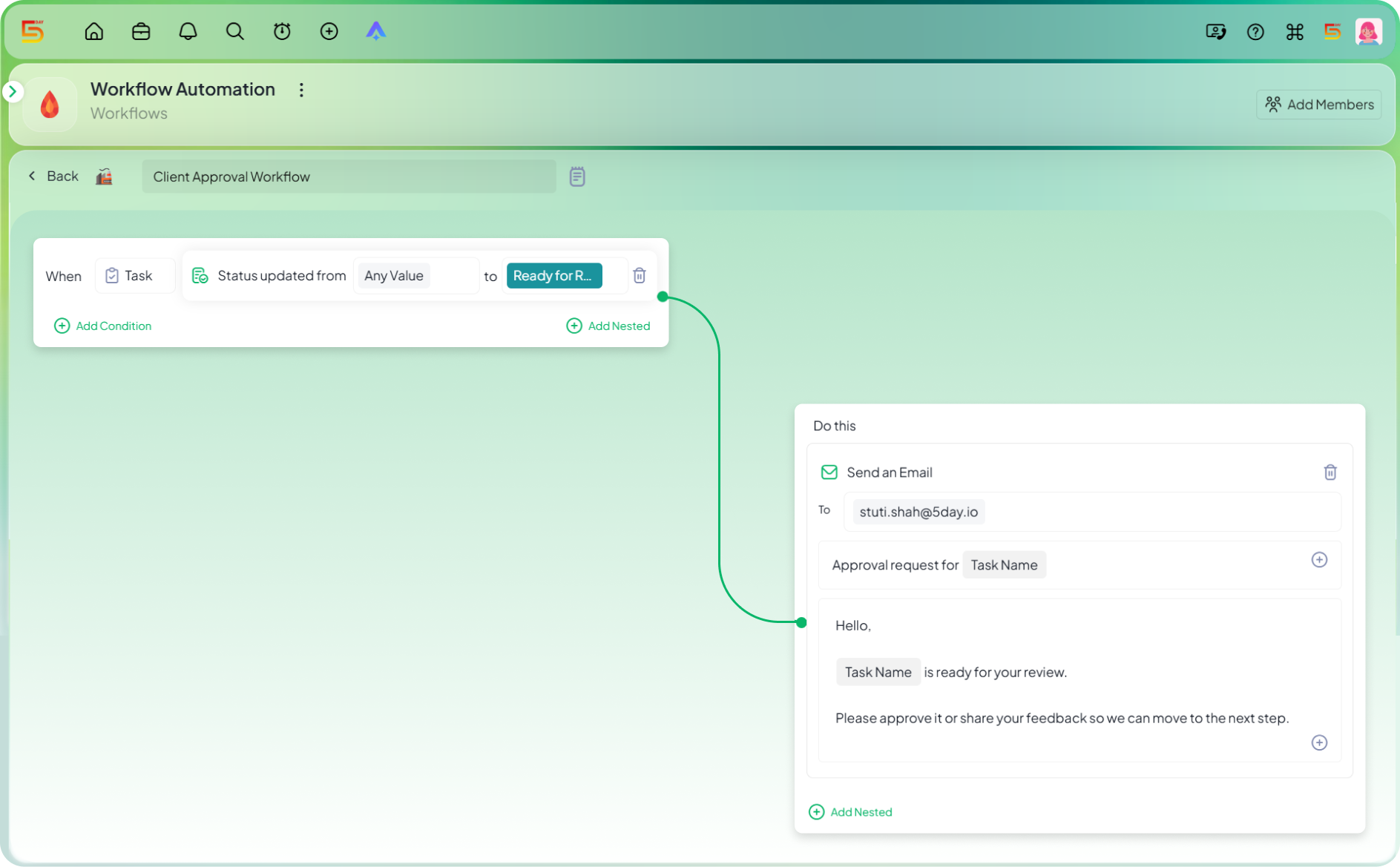
Getting a client to actually look at something and approve it is often the slowest part of any project, mostly because they don’t know it’s ready until someone tells them. I used to message clients separately every time something needed sign-off, which meant approvals sat untouched longer than they should have. This is one of the more useful project management automation tools I’ve set up, the moment a task is marked ready for review, the client gets an email with a direct link to approve it.
Setup
- Once in Workflows, select Task Status as your Trigger and set the condition to Ready for Review
- Move to the Action tab and select Email
- Write your approval request copy and include the task link so the client can act on it directly
- Save the automation → test it on one task before rolling it out project-wide
Auto-build a client onboarding checklist
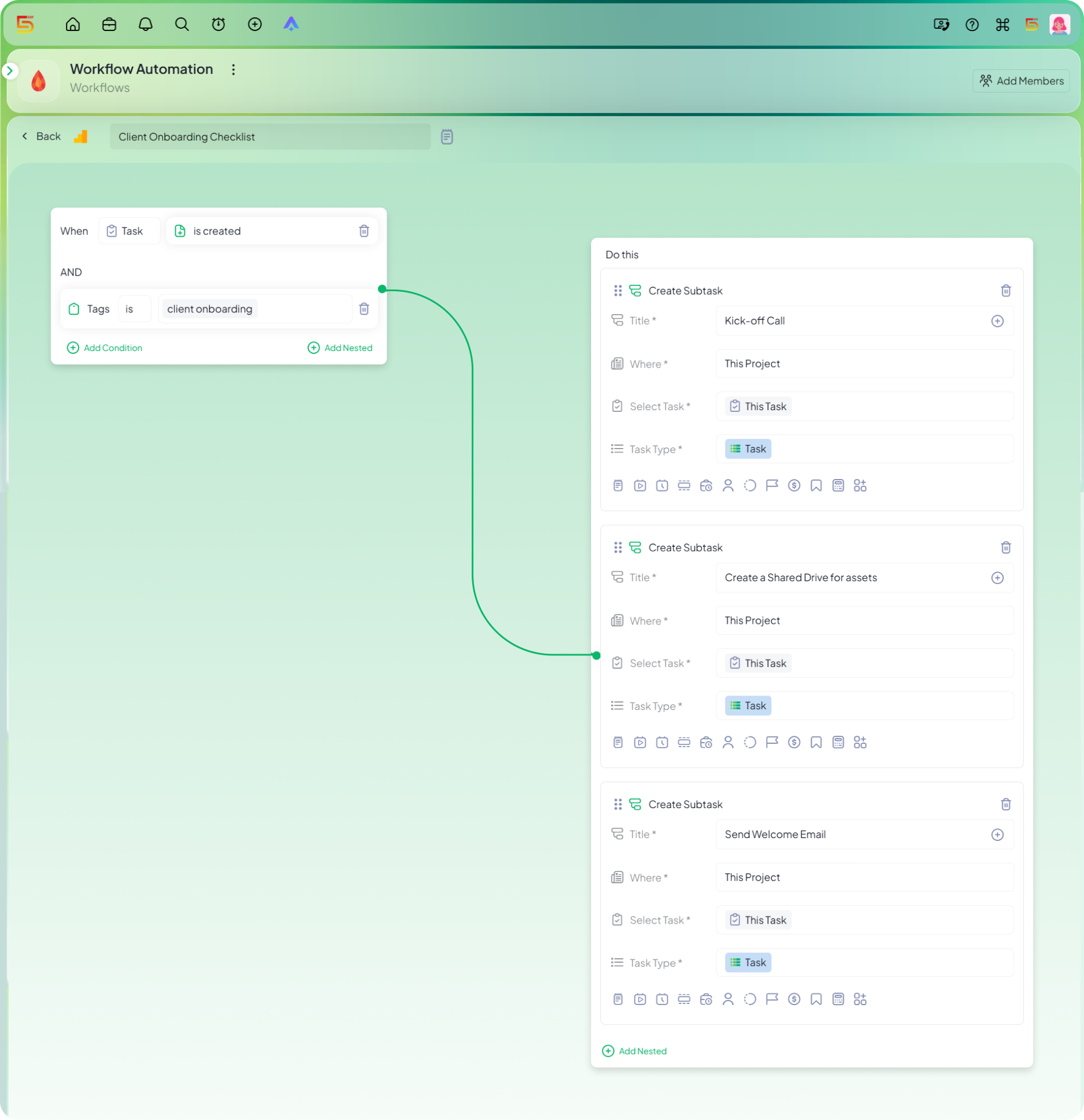
Onboarding a new client always involves the same handful of first steps, a kickoff call, a shared drive setup, a welcome email, and forgetting even one of them early on sets a sloppy tone for the whole relationship. I used to keep a running mental checklist and copy it over manually for every new client. Now, the moment a new client project is created, 5day.io builds the entire onboarding checklist for me automatically.
Setup
- Once in Workflows, select Project Created as your Trigger
- Add a nested condition for Tag and set it to Client Onboarding
- Move to the Action tab and select Create Subtask
- Add each onboarding task you want generated, for example, Kickoff call, Shared drive setup, and Welcome email
- Save the automation → test it on one new project before rolling it out across all client work
Rebuild a recurring task automatically
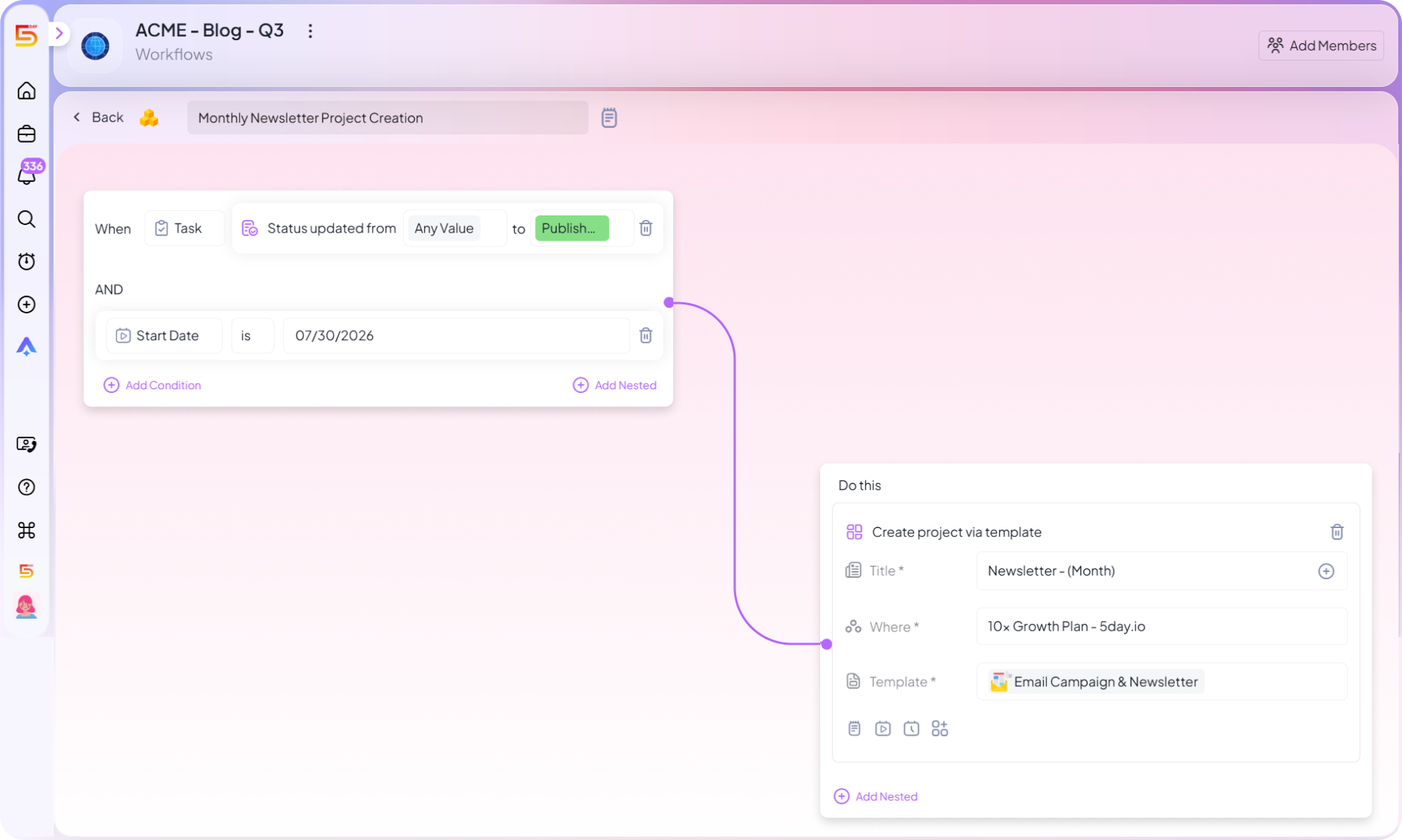
Some marketing work never really ends, it just repeats, a weekly report, a monthly newsletter, a recurring client check-in. Recreating these tasks by hand every cycle is one of those small chores that quietly eats up time across a month. This is a straightforward answer to how to automate repetitive marketing tasks, the moment one cycle is marked complete, the next one is created automatically from the same template.
Setup
- Once in Workflows, select Task Status as your Trigger and set the condition to Complete
- Add a condition for Tag and set it to Recurring
- Move to the Action tab and select Create Task
- Choose the template you want the new task built from
- Save the automation → test it on one recurring task before rolling it out project-wide
Turn HubSpot data into assigned tasks

Marketing and sales handoffs usually break down when a lead comes in, and someone has to notice it, then manually create a task for the right person to follow up. I used to check HubSpot separately from my project tool, which meant leads sat untouched longer than they should have. This is one of the stronger project management automation tools available when HubSpot and 5day.io are connected, a new lead in HubSpot creates a task in 5day.io and assigns it automatically.
Setup
- Connect your HubSpot account under Integrations in 5day.io
- Once in Workflows, select HubSpot: New Deal as your Trigger
- Move to the Action tab and select Create Task
- Add an Assignee action so the task auto-routes to the right team member
- Save the automation → test it with one incoming lead before relying on it fully
Gate a video for publishing
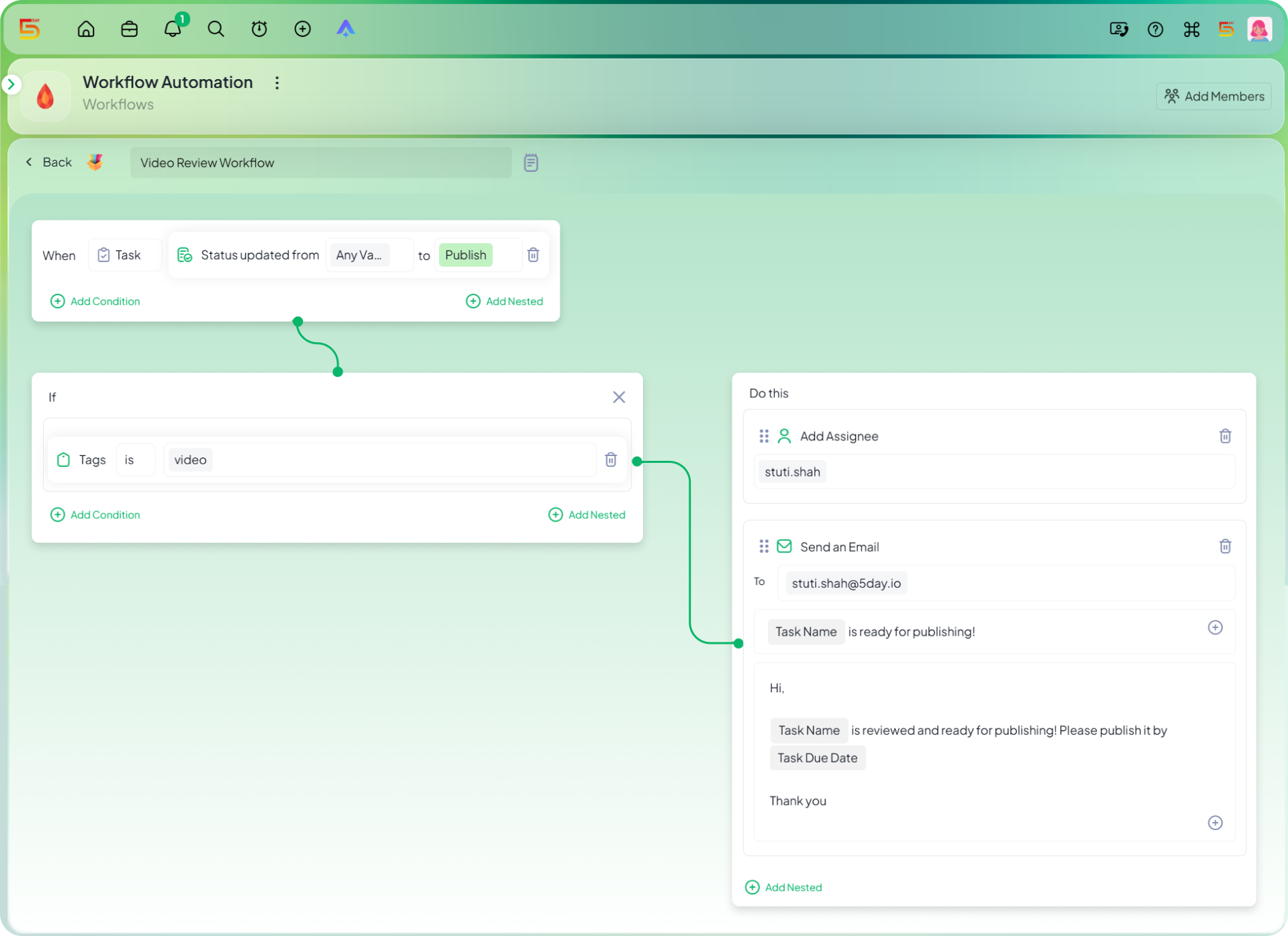
Video content has one extra risk that blog posts don’t: the video itself has to actually be live and working before anyone tells the world it’s out. I’ve had it happen where a video post went out before the link was even functional, which is an easy way to look sloppy in front of an audience. This is one of the more useful automation in project management setups for teams juggling video content, the moment a video task moves to publish, it gets scheduled and the marketing lead is looped in to confirm the link is live before anything goes out publicly.
Setup
- Once in Workflows, select Task Status as your Trigger and set the condition to Publish
- Add a nested condition for Task Type and set it to Video
- Move to the Actions tab. Add an Assignee action for whoever handles publishing
- Add an Email action to notify the marketing lead to confirm the video link is live
- Save the automation → test it on one video task before rolling it out project-wide
Route client-facing content to a senior editor
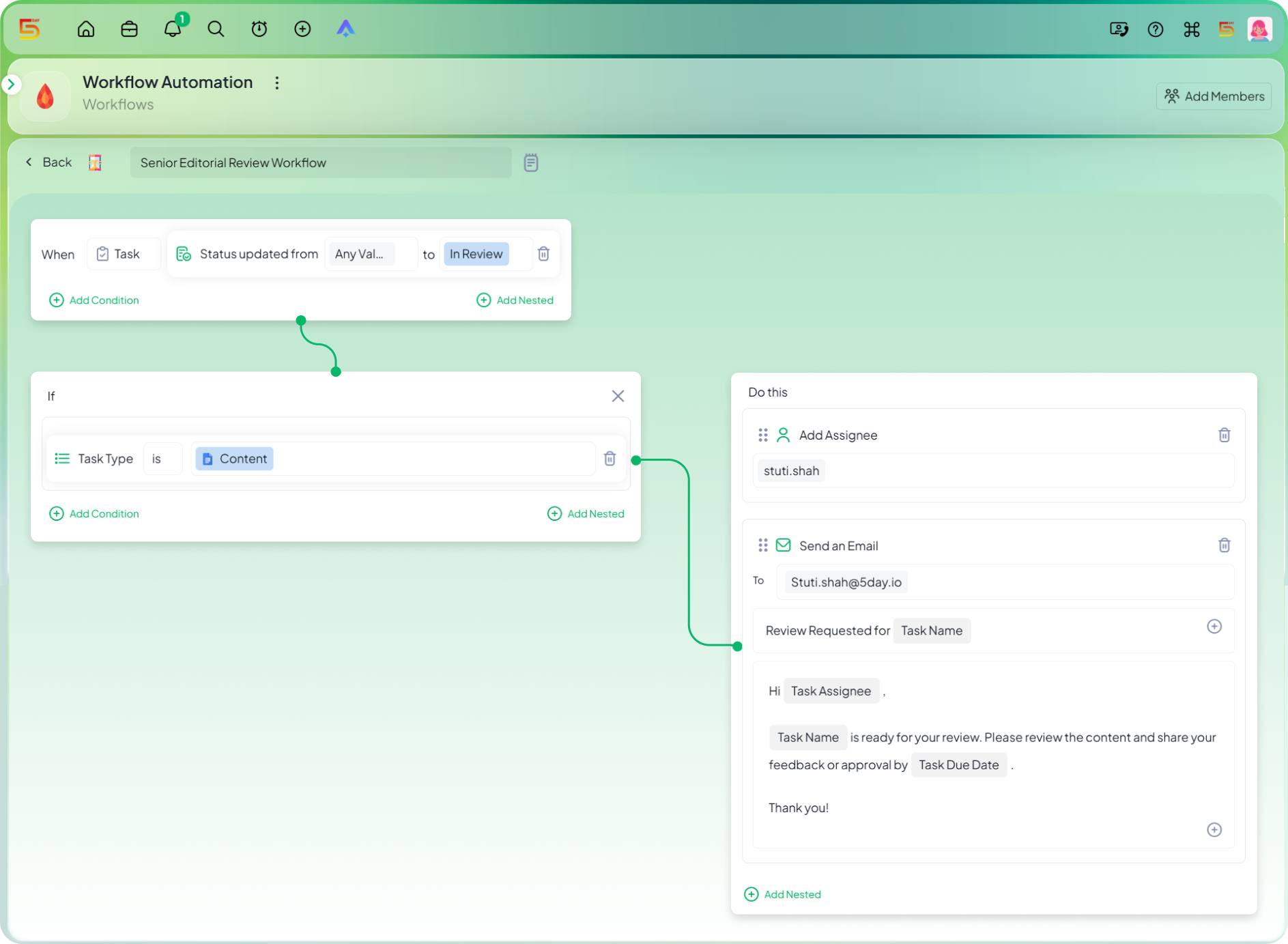
Not all content carries the same risk if it goes out with a mistake. A blog draft with a typo is embarrassing, but client-facing content with an error can damage a relationship you’ve spent months building. I learned this one the hard way after a client-facing piece slipped through a standard review and needed an awkward follow-up correction. This is one of the smarter project management automation ideas for teams handling sensitive client work, the moment client-facing content hits review, it skips the standard reviewer and routes straight to a senior editor, with the client looped in on a preview link.
Setup
- Once in Workflows, select Task Status as your Trigger and set the condition to Under Review
- Add a nested condition for Task Type and set it to Content
- Move to the Actions tab and select Assignee→ set it to your senior editor
- Add an Email action with a preview link, addressed to the client
- Save the automation → test it on one client task before rolling it out project-wide
Auto-route urgent design tasks
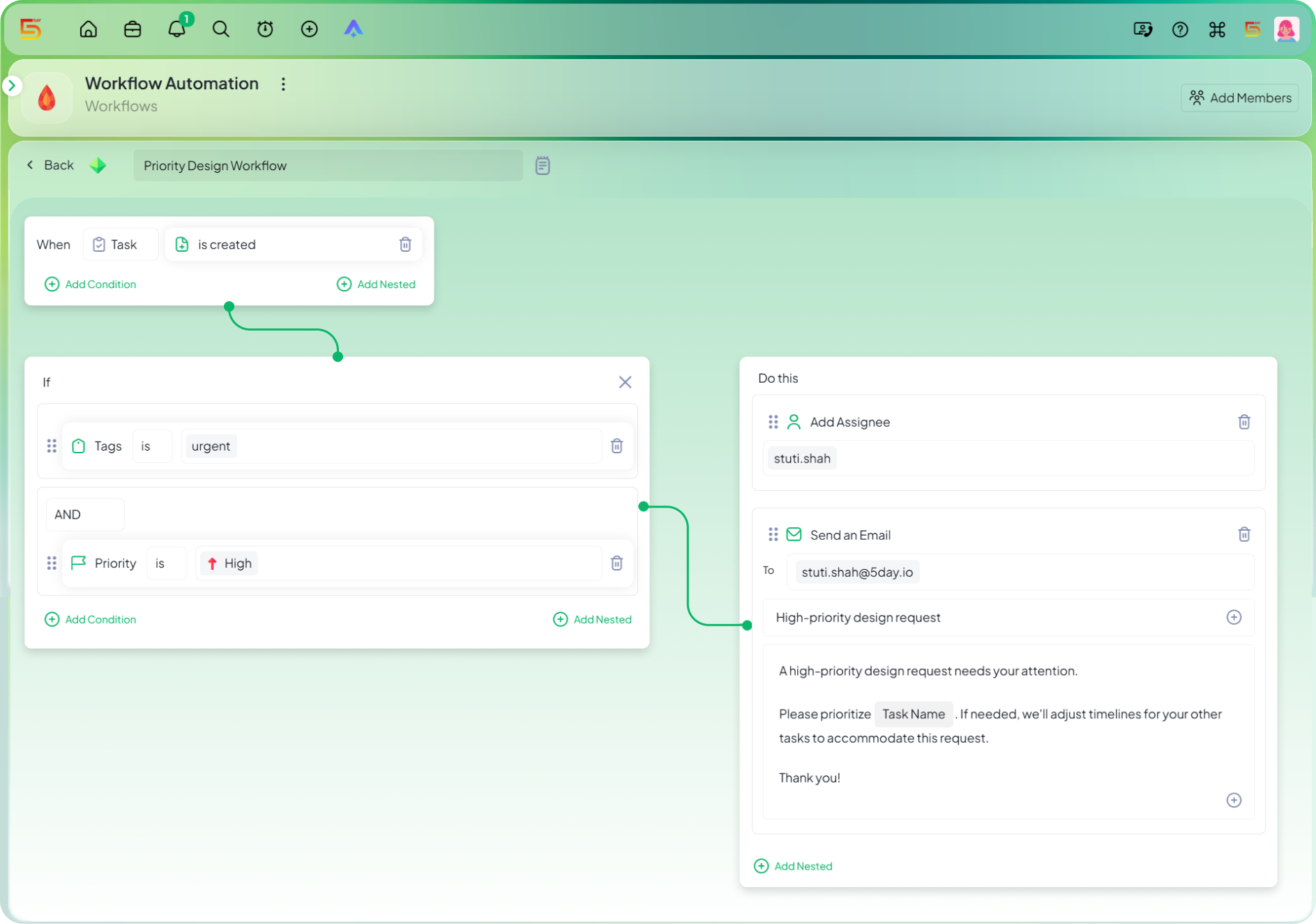
Design requests usually end up landing in a queue and waiting their turn, even when they’re actually urgent, because nothing separates a “whenever you get to it” request from a “we need this today” one. I used to rely on people flagging urgency in Slack, which only worked if someone was paying attention at that exact moment. This is a practical piece of project management workflow automation for any team fielding last-minute creative requests, the moment a new task is tagged urgent, it’s assigned straight to the right person with priority already set.
- Once in Workflows, select Task Created as your Trigger
- Add a nested condition for Tag and set it to Urgent
- Add another nested condition for Priority and set it to High
- Move to the Actions tab and select Assignee → set it to your on-call designer
- Save the automation → test it on one incoming task before rolling it out project-wide
Auto-schedule content once it’s approved
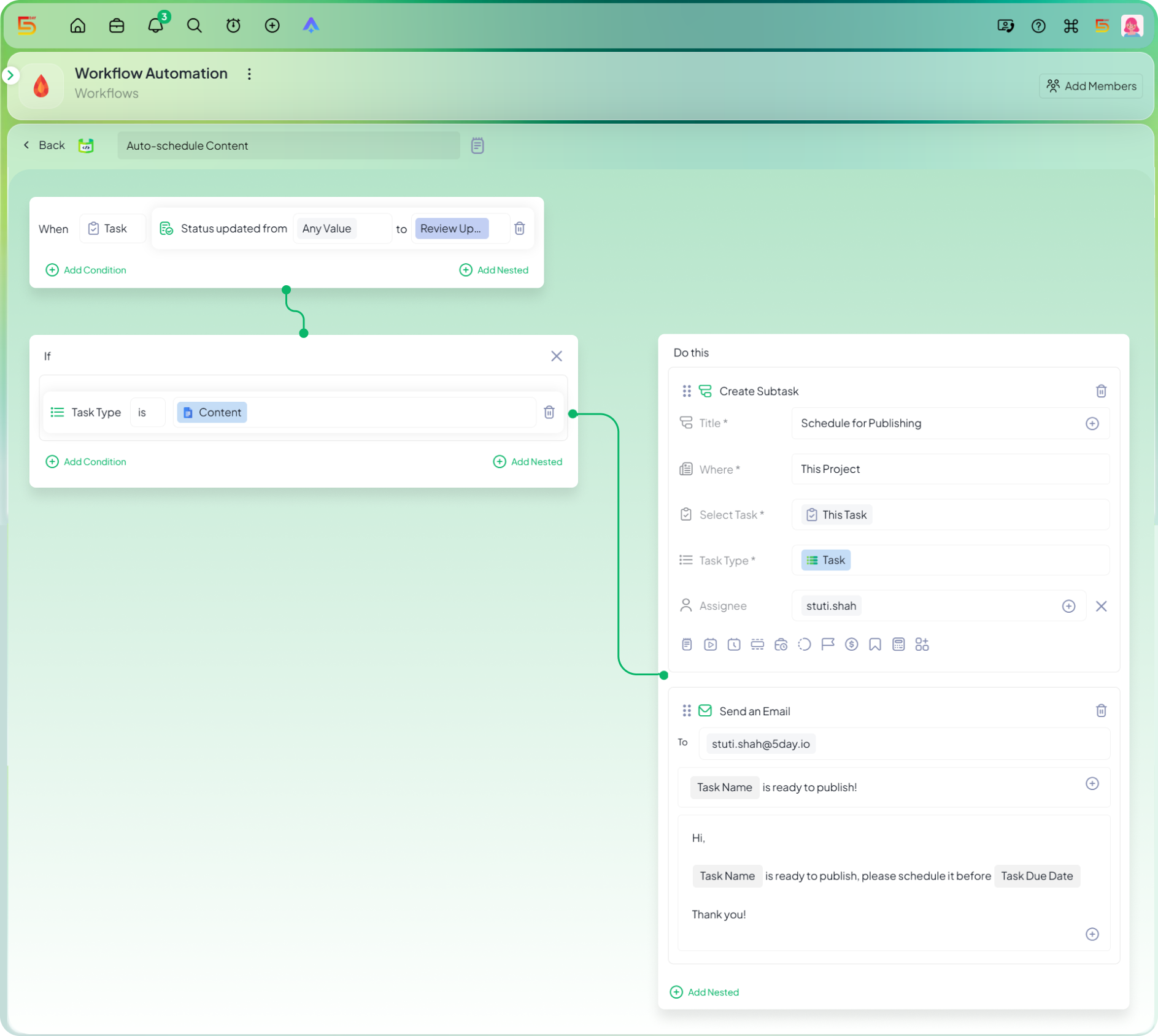
I can’t tell you how many times a piece got approved and then just… sat there. Not because anyone dropped the ball, approval just doesn’t tell anyone “hey, go schedule this.” I’d find out a day later that something was ready and nobody had touched it since. So now, the second a content task hits Approved, 5day.io spins up the scheduling task and hands it to whoever owns that step. One less thing to remember.
Setup
- Once in Workflows, select Status as your Trigger and set the condition to Approved
- Add a nested condition for Task Type and set it to Content
- Move to the Actions tab and select Create Subtask→ name it Schedule for publish
- Add an Assignee action, set to whoever owns scheduling
- Save the automation → test it on one approved task before rolling it out project-wide