

How to Build Your First Dashboard in 5day.io
- Start a free trial. Sign up for 5day.io. The Scale plan includes a 30-day free trial, and no credit card is needed.
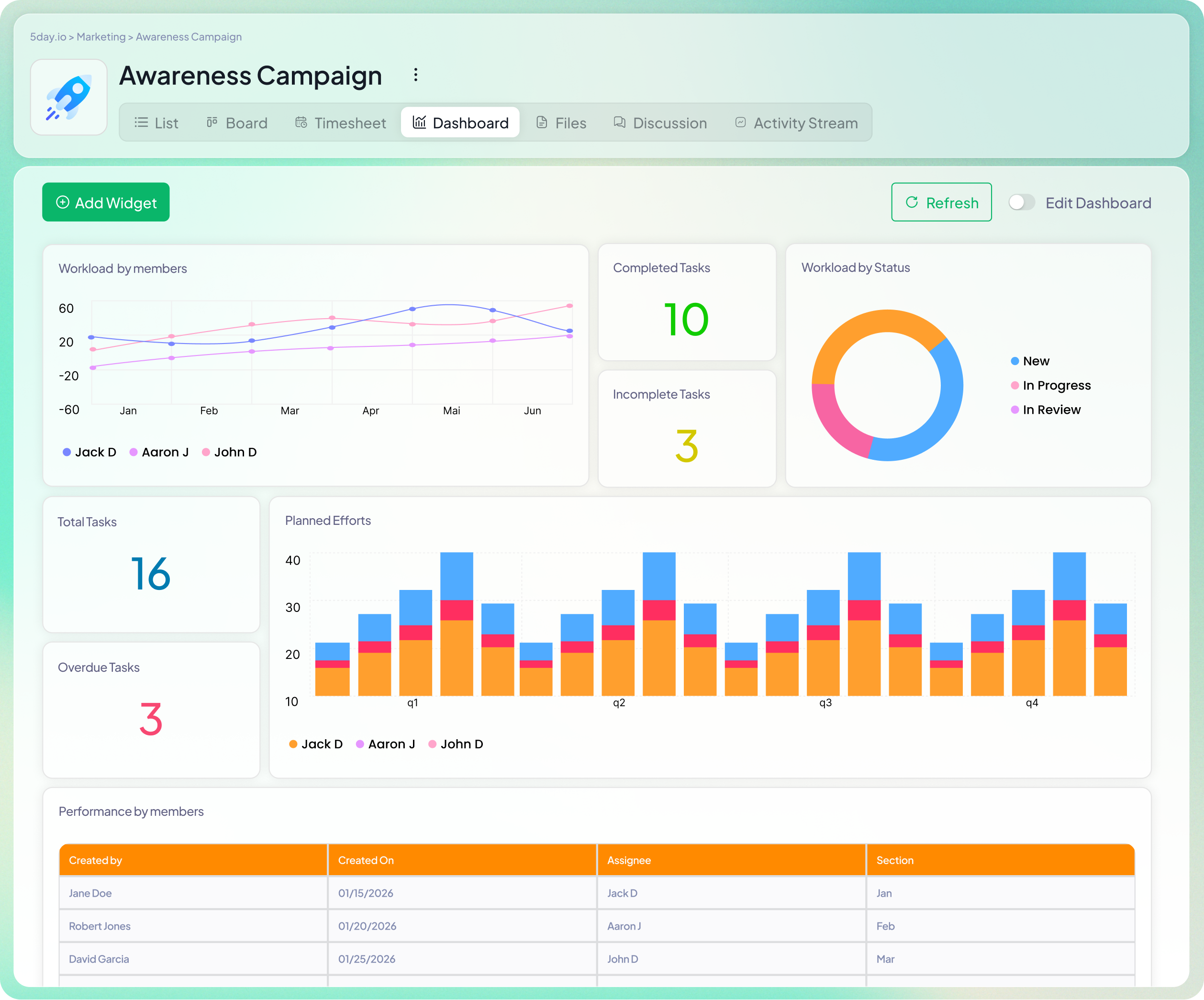
- Open a project and click the Dashboard Default widgets for total, overdue and completed tasks are already there.
- Click + Add Widget and copy any example below. Example 1 takes about a minute.
- Click Create Widget. Each widget updates as your team works.
10 Marketing Project Dashboard Examples From 5day.io
These marketing project dashboard examples start with a single widget and build up to a full 5day.io dashboard. Examples 1-5 are quick wins: one chart each, answering one everyday question. Examples 6-8 put two numbers side by side. Examples 9 and 10 are complete campaign dashboard examples for weekly planning and launches.
Who’s Behind? Dashboard
Built for: Marketing managers and ops leads who check delivery every morning.
Answers: Who has overdue work right now, and how much?
What’s on this dashboard
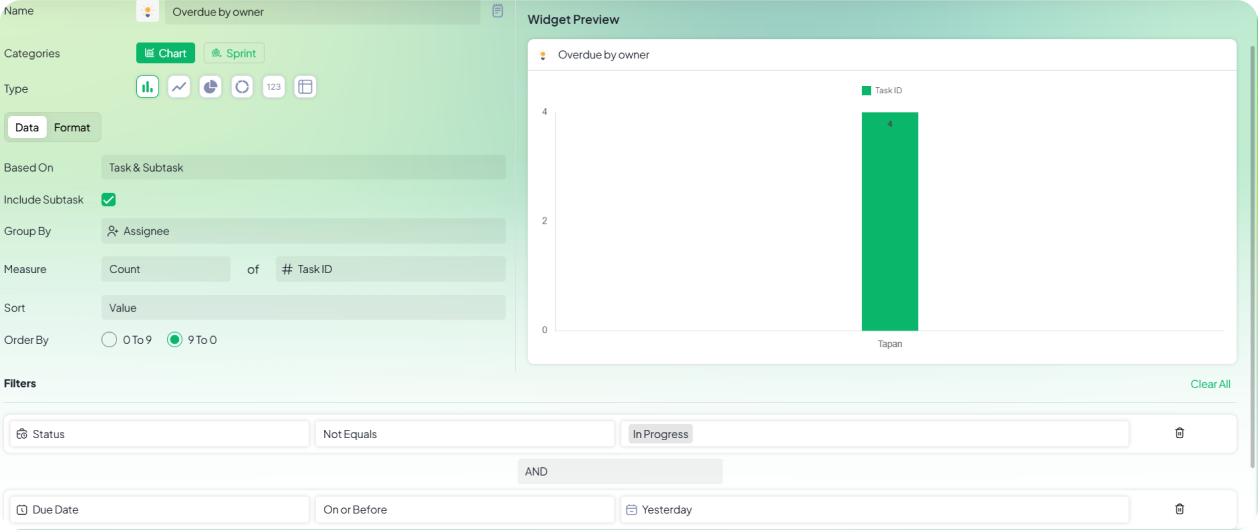
One bar chart showing overdue tasks per person, sorted with the most overdue at the top. You don’t need a stand-up to find out where things are slipping. Open the dashboard and you know who to check in with first.
How to configure it in 5day.io
Widget: Overdue by owner
- Type: Bar
- Based On: Task & Subtask · Include Subtask: ✔
- Group By: Assignee
- Measure: Count of Task ID
- Sort: Value · Order By: 9 To 0
- Filters: Stage · Not Equals · Done and Due Date · On or Before · Yesterday
Tip: The Yesterday filter updates on its own every day, so the chart always shows what’s overdue as of this morning.
Content Pipeline Dashboard
Built for: Content leads and editorial managers.
Answers: How much content is in flight, and at which step of the workflow is it sitting?
What’s on this dashboard
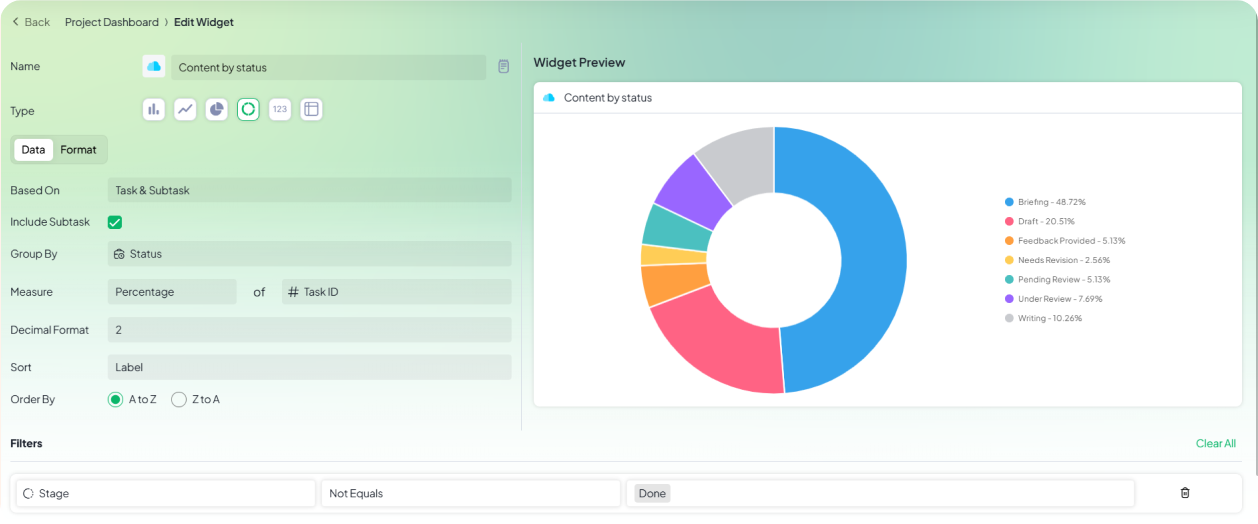
One donut chart that splits every in-progress content piece by status, such as Brief, Drafting, In Revision and Scheduled. A large slice tells you where work is piling up: lots of drafts usually means writers are stretched, and a big review slice means approvers are the bottleneck. It’s one of the simplest ways to set up a 5day.io dashboard for marketing teams that publish on a schedule.
How to configure it in 5day.io
Widget: Content by status
- Type: Donut
- Based On: Task & Subtask · Include Subtask: ✔
- Group By: Status
- Measure: Percentage of Task ID
- Filter: Stage · Not Equals · Done
- Format tab → Legend position: Right
Tip: Measuring by Percentage shows each status as a share of the pipeline, so you can compare weeks even when the total volume changes.
Planned vs. Actual Effort Dashboard
Built for: Marketing ops leads and agency account managers keeping scope in check.
Answers: Which workstreams are taking longer than planned?What’s on this dashboard
Two bar charts placed side by side:
- Planned hours by workstream: the estimated hours for work finished this month, per Section.
- Actual hours by workstream: the hours logged on that same work, per Section.
When one workstream’s actual bar is much taller than its planned bar, that’s where scope is creeping, or where estimates need fixing for the next campaign. It’s one of the most useful views to have in a 5day.io dashboard, because the gap appears while the month is still running, not at the retrospective.
How to configure it in 5day.io
Widget 1: Planned hours by workstream
- Type: Bar
- Based On: Task & Subtask · Include Subtask: ✔
- Group By: Section
- Measure: Sum of Estimation
- Sort: Label · Order By: A to Z
- Filters: Stage · Equals · Done and Due Date · Equals · This Month
Widget 2: Actual hours by workstream
- Type: Bar
- Based On: Task & Subtask · Include Subtask: ✔
- Group By: Section
- Measure: Sum of Logged Hours
- Sort: Label · Order By: A to Z
- Filters: Stage · Equals · Done and Due Date · Equals · This Month
Tip: Keep both charts sorted by Label, A to Z so the Sections line up in the same order. In the Format tab, give each Section the same colour in both charts so you can compare them at a glance.
Review Bottleneck Dashboard
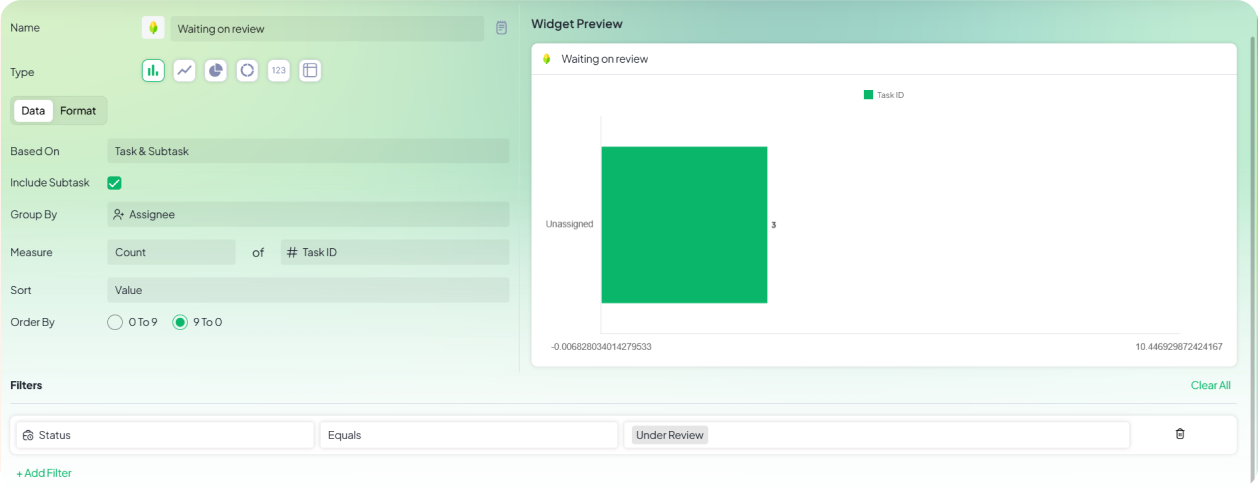
Built for: Marketing ops leads, brand managers and compliance reviewers.
Answers: How much work is waiting on review, and who is it waiting on?
What’s on this dashboard
One bar chart showing how many tasks are sitting in review with each person, with the longest queue at the top. Review is where campaigns lose days, because the work is finished but nobody has signed it off. Few project management dashboard examples cover approvals, yet for marketing teams it’s often the step that decides whether a launch date holds.
How to configure it in 5day.io
Widget: Waiting on review
- Type: Bar
- Based On: Task & Subtask · Include Subtask: ✔
- Group By: Assignee
- Measure: Count of Task ID
- Sort: Value · Order By: 9 To 0
- Filter: Status · Equals · In Revision (or whatever your review status is called)
- Format tab → Orientation: Horizontal
Tip: Reassign the task to the reviewer when it moves into review. That way the chart shows who has it, not who wrote it.
Thanks. I’ll switch Example 5 to the Task & Subtask source instead. It also has Budget Type as a Group By and Logged Hours as a Measure, and it supports the Due Date filter. The one change is that hours are counted for tasks due this month, not by the date the time was logged, so I’ve worded the copy to match.
Campaign Launch Readiness Dashboard
Built for: Campaign managers and marketing ops leads running a multi-channel launch.
Answers: How much work is left before launch day, which channel is behind, and how close are we to done?What’s on this dashboard
Three widgets that together act as a launch control room:
- Hours left before launch (number): estimated hours of open work due before the launch date. Compare it with the working days left, and you know whether the date is realistic.
- Open work by workstream (bar chart): open launch tasks per channel, such as email, paid social or landing page. This shows which part of the launch is behind.
- Launch progress (donut): the share of launch tasks that are New, In Progress and Done. It gives you one visual to share with leadership when they ask “where are we?”
All three use a Tags filter, so one project can run several launches and each dashboard only counts its own campaign. That’s what sets this apart from most campaign dashboard examples, which assume every project is a single campaign.
How to configure it in 5day.io
Widget 1: Hours left before launch
- Type: 123 (Number)
- Based On: Task & Subtask · Include Subtask: ✔
- Measure: Sum of Estimation
- Filters: Stage · Not Equals · Done, Due Date · On or Before · [launch date] and Tags · Equals · [campaign tag]
Widget 2: Open work by workstream
- Type: Bar
- Based On: Task & Subtask · Include Subtask: ✔
- Group By: Section
- Measure: Count of Task ID
- Sort: Value · Order By: 9 To 0
- Filters: Stage · Not Equals · Done and Tags · Equals · [campaign tag]
Widget 3: Launch progress
- Type: Donut
- Based On: Task & Subtask · Include Subtask: ✔
- Group By: Stage
- Measure: Percentage of Task ID
- Filter: Tags · Equals · [campaign tag]
- Format tab → Legend position: Right
Tip: Tag every launch task with the campaign name (e.g. Q4-Product-Launch) when you create it, and set up each channel as a Section. The dashboard then works as a launch checklist from day one.
Team Capacity Dashboard
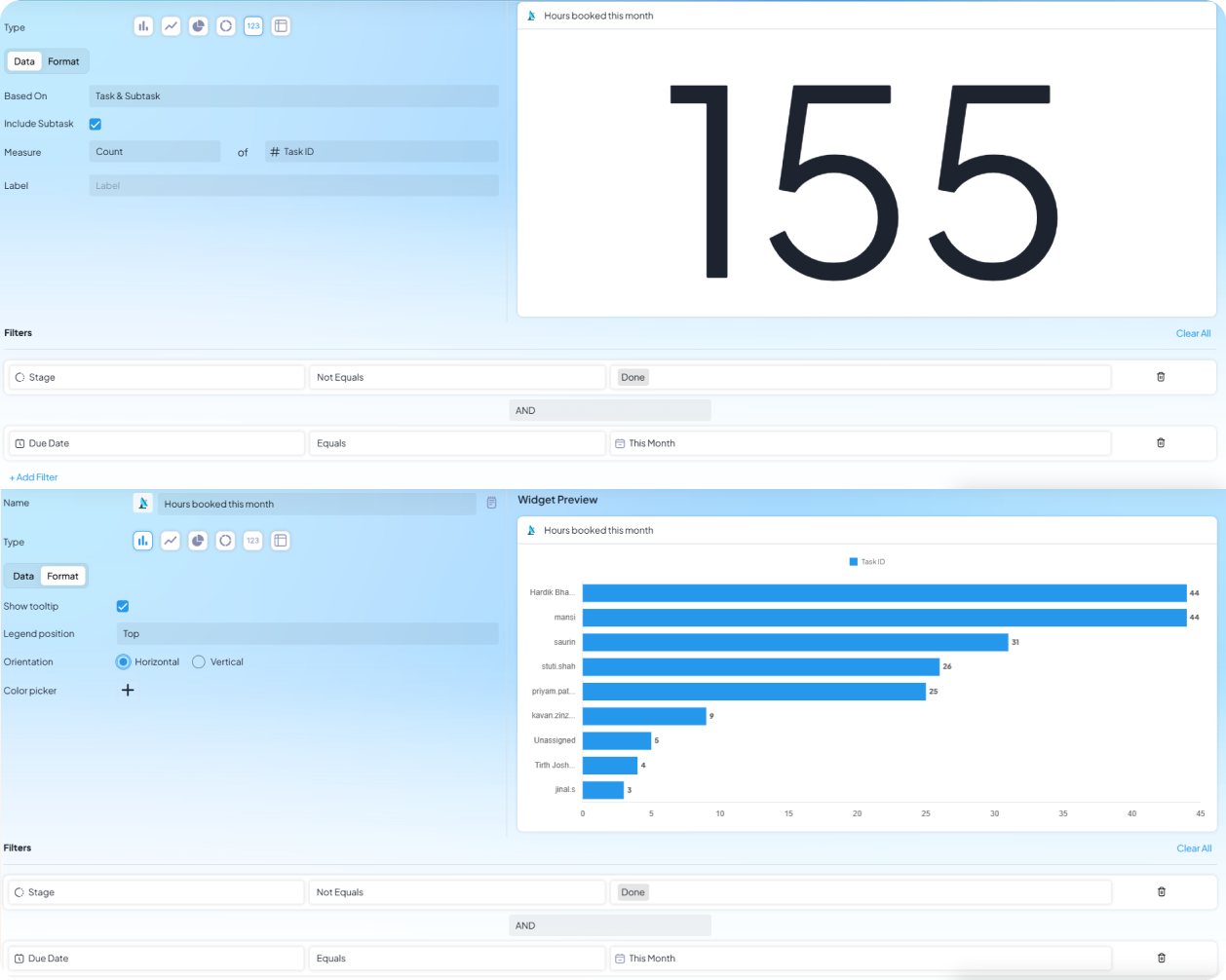
Built for: Marketing managers and ops leads planning the month’s workload.
Answers: How much work is booked this month, and is it spread fairly across the team?
What’s on this dashboard
Two widgets that work as a pair:
- Hours booked this month (number): total estimated hours of open work due this month. Compare it with how many hours your team actually has, and you know straight away whether the month is realistic.
- Hours booked by person (bar chart): the same hours split by team member, sorted highest first. The total can look fine while one person carries twice the load of everyone else. This chart makes that visible.
The first widget tells you whether the team can handle the month. The second tells you whether any one person can.
How to configure it in 5day.io
Widget 1: Hours booked this month
- Type: 123 (Number)
- Based On: Task & Subtask · Include Subtask: ✔
- Measure: Sum of Estimation
- Filters: Stage · Not Equals · Done and Due Date · Equals · This Month
Widget 2: Hours booked by person
- Type: Bar
- Based On: Task & Subtask · Include Subtask: ✔
- Group By: Assignee
- Measure: Sum of Estimation
- Sort: Value · Order By: 9 To 0
- Filters: Stage · Not Equals · Done and Due Date · Equals · This Month
- Format tab → Orientation: Horizontal
Tip: Measuring by Estimation rather than task count gives a truer picture. One campaign landing page can take longer than five social posts.
Publishing Calendar Dashboard
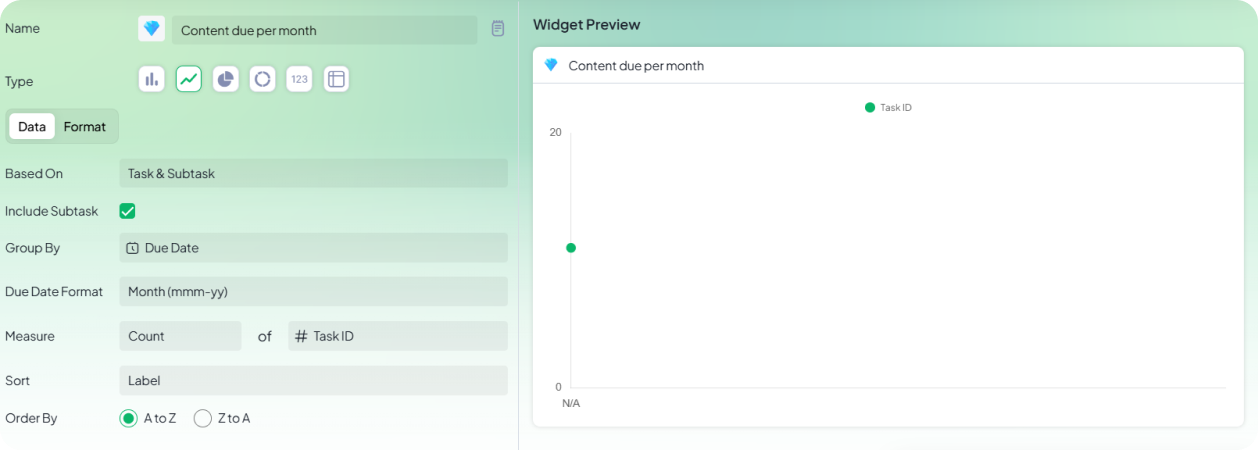
Built for: Content leads and marketing managers planning the editorial calendar.
Answers: Is there enough content scheduled for the coming months, or is there a gap?What’s on this dashboard
One line chart showing how many content pieces are due each month, from today onwards. A steady line means the calendar is healthy. A dip two or three months out means it’s time to commission briefs while there’s still room to write, review and publish. Most project dashboard examples look back at what’s already happened; this one looks ahead.
How to configure it in 5day.io
Widget: Content due per month
- Type: Line
- Based On: Task & Subtask · Include Subtask: ✔
- Group By: Due Date · Due Date Format: Month (mmm-yy)
- Measure: Count of Task ID
- Sort: Label · Order By: A to Z
- Filter: Due Date · On or After · Today
Tip: If your project mixes content and non-content tasks, add a second filter on Task Type so the line only counts content pieces.
Timesheet Approval Dashboard
Built for: Marketing ops managers and agency leads who sign off hours before invoicing or payroll.
Answers: How much logged time is still waiting for approval, and in which months?
What’s on this dashboard
Two bar charts placed side by side:
- Hours logged per month: every hour the team has recorded, grouped by the month it was logged.
- Hours approved per month: the hours that have been signed off, grouped the same way.
If the two bars match for a month, that month is closed. If the logged bar is taller, the difference is time still waiting for approval. Older months with a gap are the ones to clear first, because they hold up invoices and month-end reports. Most project dashboard examples stop at task counts. This one gives finance and ops a shared view of where time stands.
How to configure it in 5day.io
Widget 1: Hours logged per month
- Type: Bar
- Based On: Time Entry
- Group By: Time Entry Date · Format: Month (mmm-yy)
- Measure: Sum of Logged Hours
- Sort: Label · Order By: A to Z
Widget 2: Hours approved per month
- Type: Bar
- Based On: Time Entry
- Group By: Time Entry Date · Format: Month (mmm-yy)
- Measure: Sum of Approved Hours
- Sort: Label · Order By: A to Z
Tip: To find out who is behind on approvals, switch Group By to Created By in both widgets. You’ll see logged vs. approved hours for each person instead of each month.
Weekly Deadline Radar Dashboard
Built for: Marketing managers and ops leads who run the Monday planning meeting.
Answers: What’s due this week, which days are overloaded, and who’s carrying the most?
What’s on this dashboard
Three widgets that show the shape of the week before work starts:
- Due this week (number): the total open tasks due in the current week. One glance tells you whether it’s a light week or a heavy one.
- Deadlines by day (bar chart): open tasks for each day of the week. A tall bar means several campaigns share a deadline, and that’s the day to spread out.
- Hours due by owner (bar chart): estimated hours each person has due this week. A task count can miss an overloaded teammate, because one big task can outweigh five small ones.
Together they show how heavy the week is, when the pressure hits, and who’s under it. Of all the marketing project dashboard examples here, this is the one to open every Monday.
How to configure it in 5day.io
Widget 1: Due this week
- Type: 123 (Number)
- Based On: Task & Subtask · Include Subtask: ✔
- Measure: Count of Task ID
- Filters: Stage · Not Equals · Done and Due Date · Equals · This Week
Widget 2: Deadlines by day
- Type: Bar
- Based On: Task & Subtask · Include Subtask: ✔
- Group By: Due Date · Format: Date (yyyy-mm-dd)
- Measure: Count of Task ID
- Sort: Label · Order By: A to Z
- Filters: Stage · Not Equals · Done and Due Date · Equals · This Week
Widget 3: Hours due by owner
- Type: Bar
- Based On: Task & Subtask · Include Subtask: ✔
- Group By: Assignee
- Measure: Sum of Estimation
- Sort: Value · Order By: 9 To 0
- Filters: Stage · Not Equals · Done and Due Date · Equals · This Week
- Format tab → Orientation: Horizontal
Tip: Every filter uses This Week, so the dashboard updates itself each Monday and nobody has to change dates.
Billable vs. Non-Billable Hours Dashboard
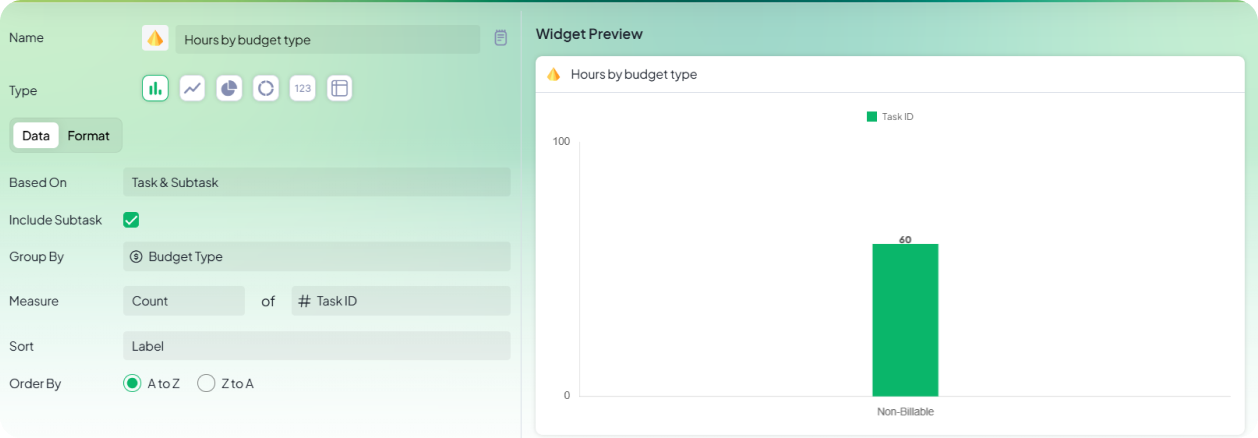
Built for: Marketing agencies, and in-house teams that charge time back to other departments. It’s especially useful for teams evaluating a marketing agency project management tool that can connect project delivery with billable hours.
Answers: How much of the time logged on this month’s work can be billed, and how much can’t?What’s on this dashboard
One donut chart that splits the hours logged on this month’s tasks by budget type. If the non-billable slice keeps growing, it usually means internal meetings, rework or unscoped requests are eating into client time. That’s worth catching before the invoice goes out. For agencies, it’s one of the top 5day.io dashboards to set up first.
How to configure it in 5day.io
Widget: Hours by budget type
- Type: Donut
- Based On: Task & Subtask · Include Subtask: ✔
- Group By: Budget Type
- Measure: Sum of Logged Hours
- Filter: Due Date · Equals · This Month
- Format tab → Legend position: Right
Tip: Change the Measure to Sum of Estimation to compare planned billable hours with actual billable hours. A gap between the two is often the first sign of scope creep.
You don’t need a big setup to get value from a dashboard. Pick the one question your team asks most often, build a widget that answers it, and add more as you need them. As part of your marketing operations software, 5day.io pulls dashboard data directly from the tasks and hours your team already tracks, so the numbers stay current without extra reporting work.